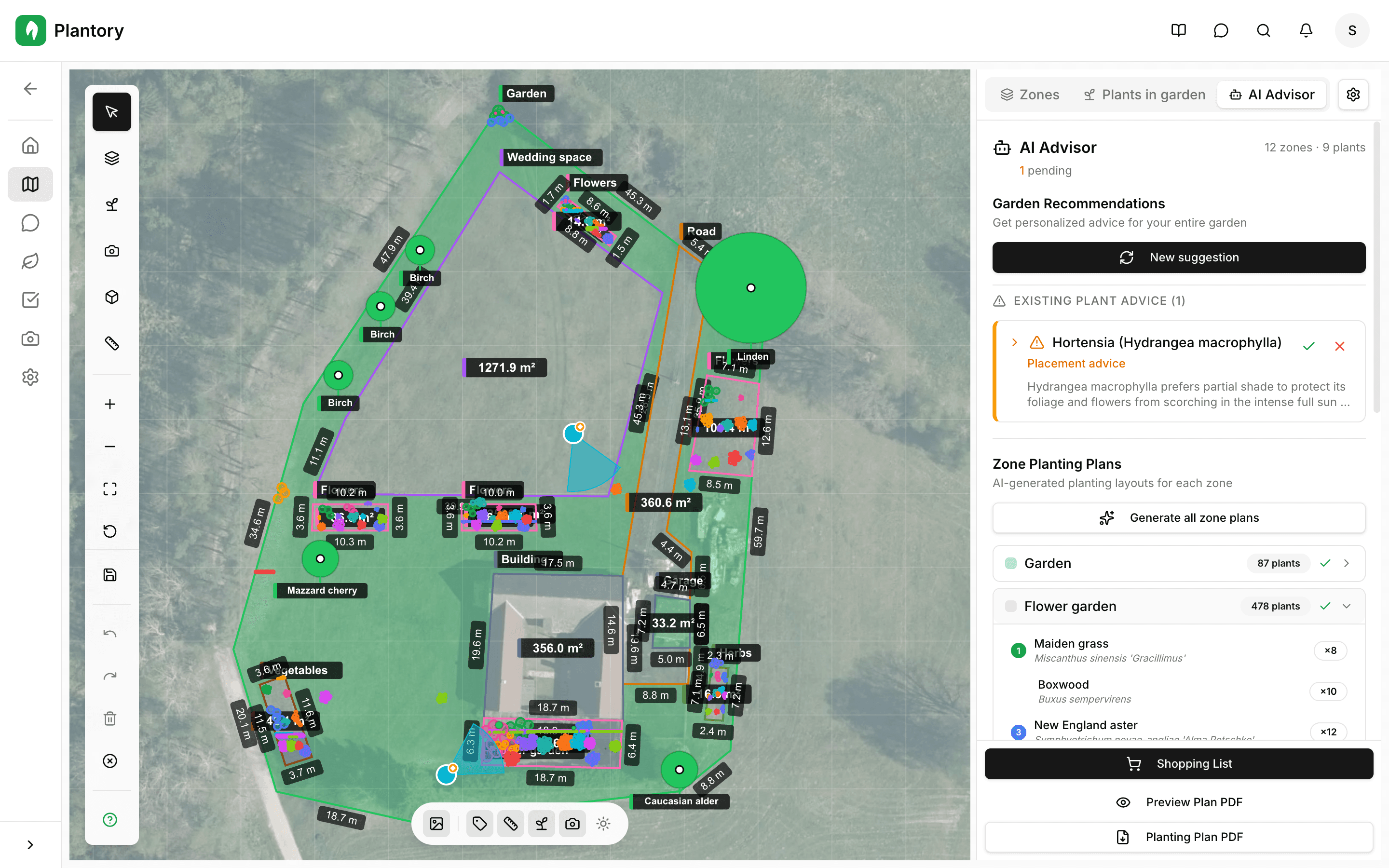
Working with Zones
Create and manage different areas in your garden plan.
What Are Zones?
Zones are distinct areas in your garden that serve different purposes. They help you organize your space and get targeted recommendations for each area.
Examples of zones:
- Vegetable beds for growing food
- Flower borders for color and pollinators
- Lawn areas for recreation
- Paths and walkways for access
- Utility areas like compost bins
Drawing Zones
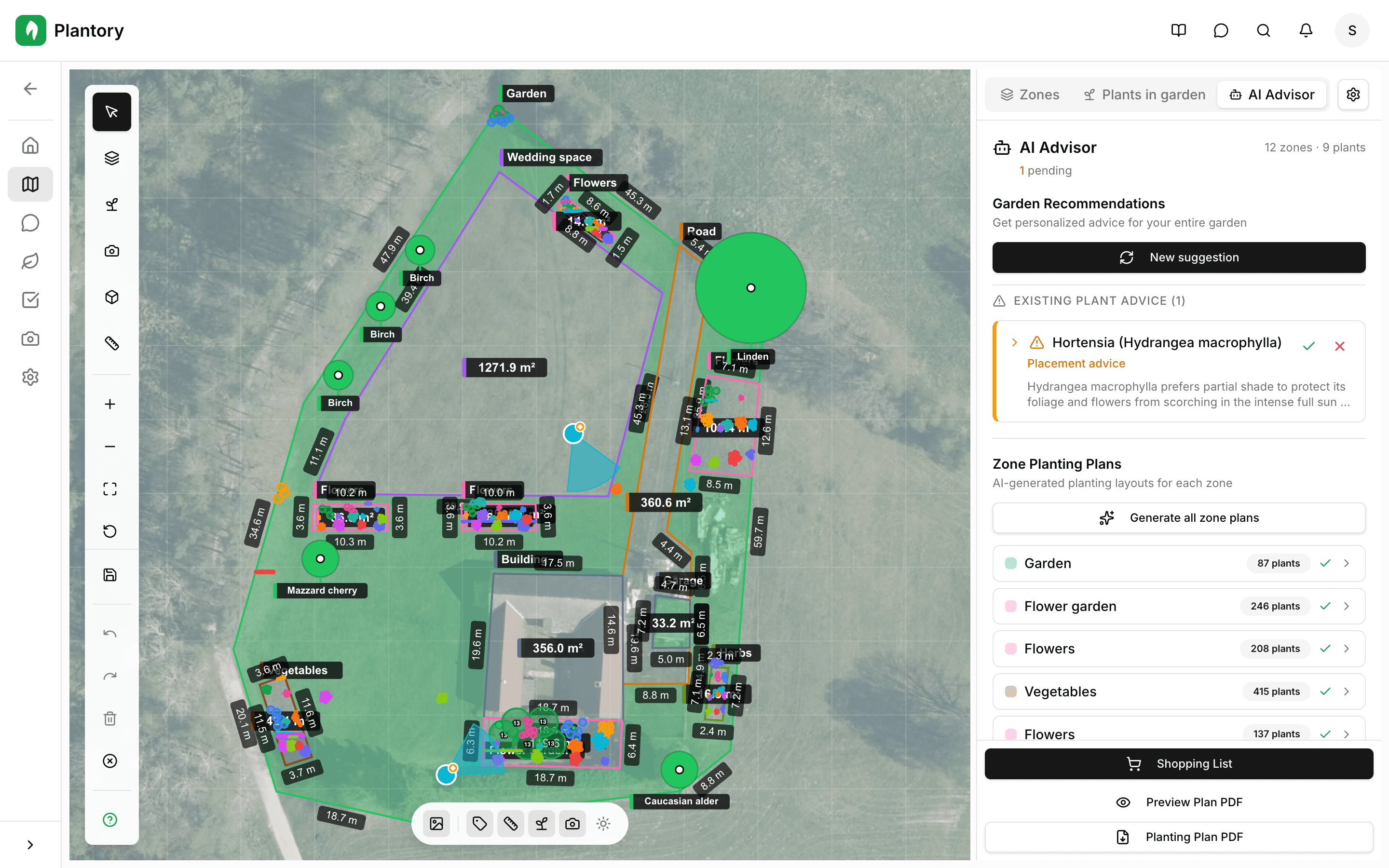
Creating a zone is as easy as drawing a shape on your garden canvas.
Select the Zone Tool
Click the zone tool (polygon icon) in the toolbar on the left side of the canvas.
Click to add points
Click on the canvas to place corner points of your zone. The shape will be drawn as you add points.
Close the shape
Click on the first point again or double-click to complete the zone.
Drawing tips
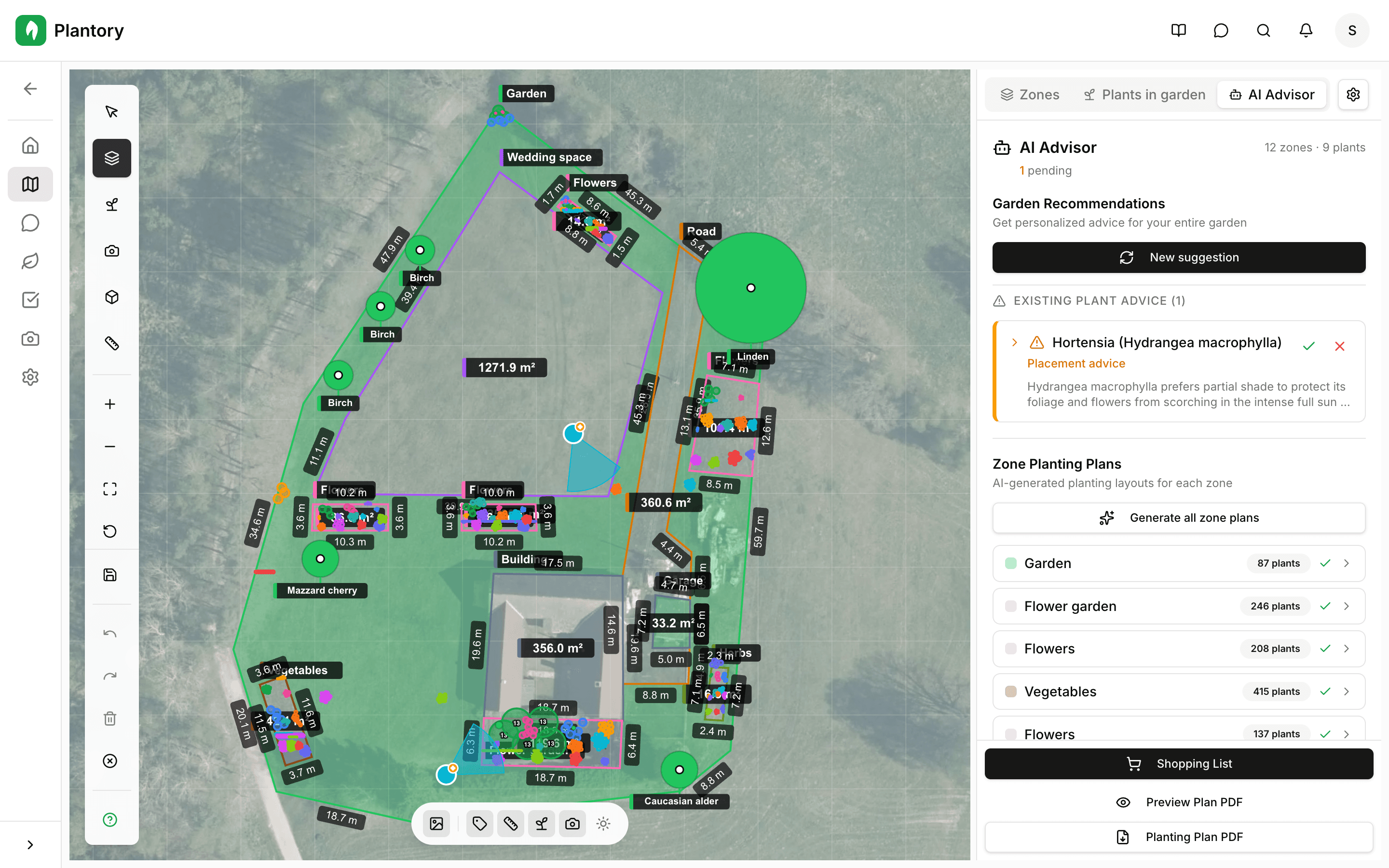
For curved areas, add more points along the curve. You can always edit zone shapes later by dragging the corner points.
Zone Types
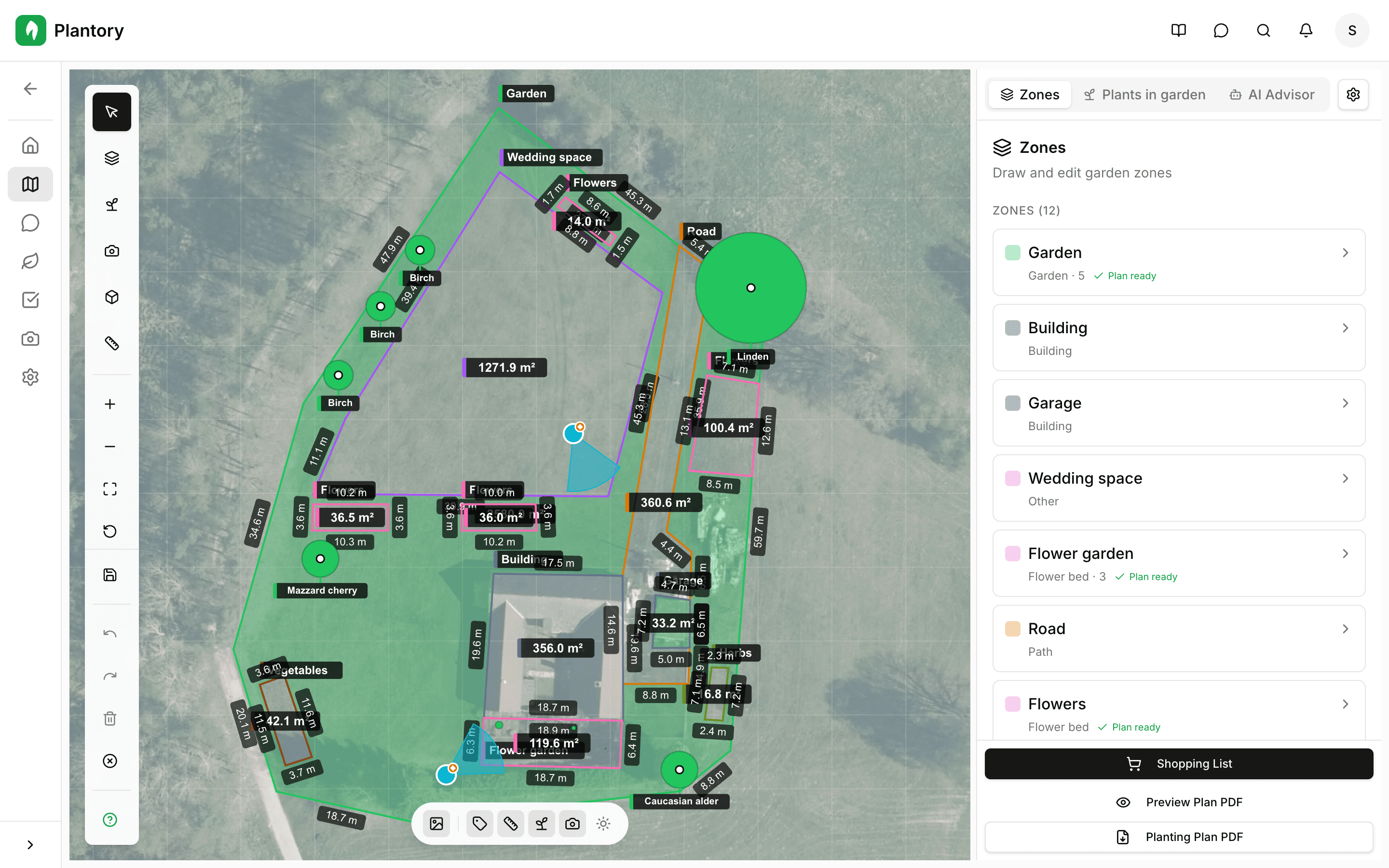
After drawing a zone, select its type to help Plantory understand what you're growing there.
| Zone Type | Description | Height | Plantable | Shadow |
|---|---|---|---|---|
| Building | Structures like house, shed | ✓ | — | ✓ |
| Fence | Fencing | ✓ | — | ✓ |
| Wall | Walls and barriers | ✓ | — | ✓ |
| Gate | Entry gates | ✓ | — | ✓ |
| Entrance | Garden entrance | — | — | — |
| Garden | General garden area | — | ✓ | — |
| Vegetable Bed | For growing vegetables | — | ✓ | — |
| Herb Garden | For herbs | — | ✓ | — |
| Flower Bed | Ornamental flowers | — | ✓ | — |
| Orchard | Fruit trees | — | ✓ | — |
| Access | Paths and walkways | — | — | — |
| Other | Custom zone type | — | — | — |
Sun Exposure Mapping
The sun brush tool lets you paint areas of different sun exposure on your garden plan. This is crucial for placing plants correctly.
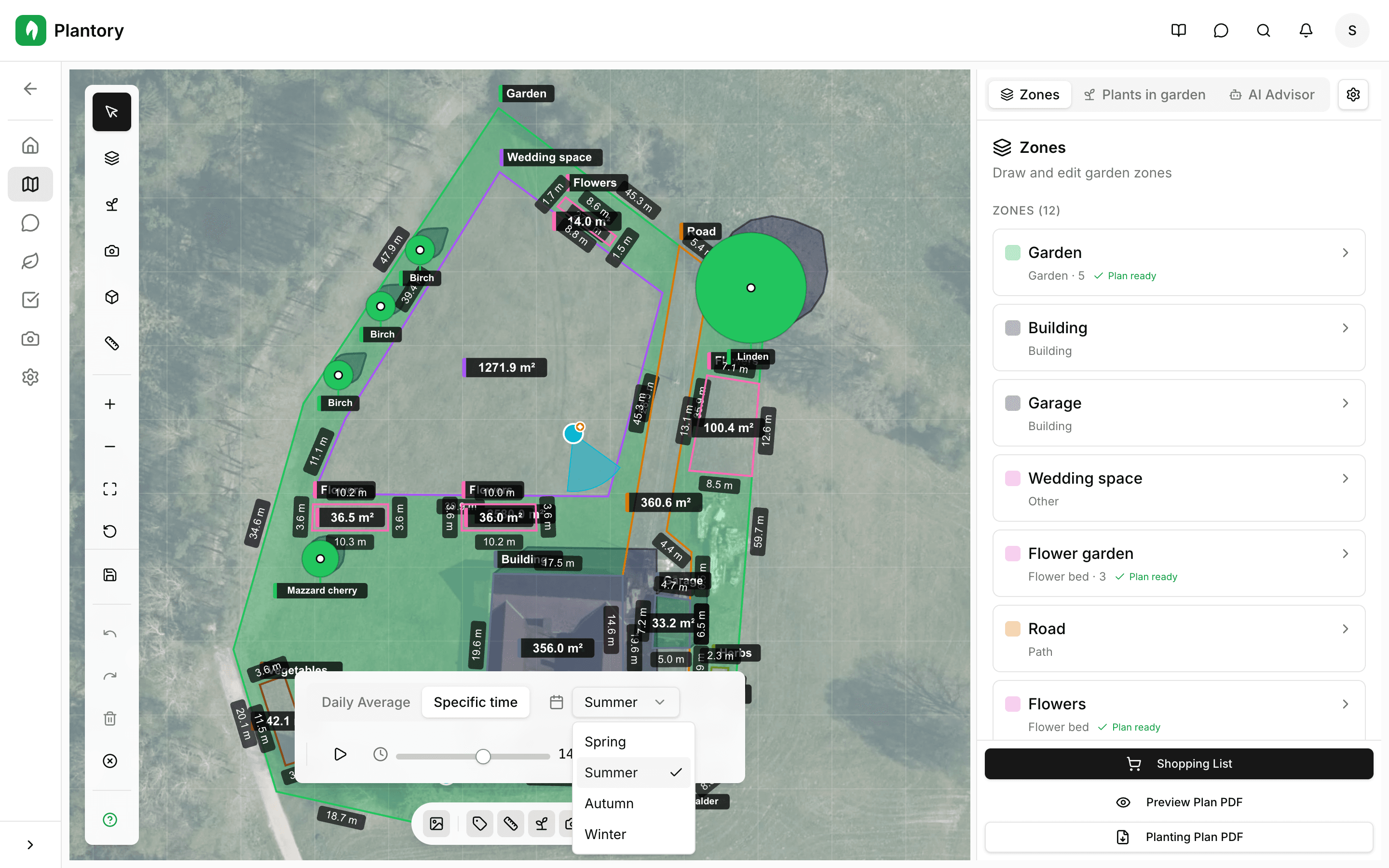
Select the Sun Brush
Click the sun icon in the toolbar to activate the sun brush.
Choose exposure level and paint
Select full sun, partial shade, or full shade, then paint over the relevant areas.
Adjust brush size
Use the size slider to make the brush larger for open areas or smaller for detailed work.
Why map sun exposure
Different plants have different light requirements. By mapping where sun falls throughout the day, Plantory can recommend the right plants for each spot.
Editing Zones
You can modify zones at any time using the selection tool.
- Click and drag to move a zone
- Drag corner handles to reshape
- Press Delete or use the delete button to remove
- Click to select and edit properties in the side panel