Visualizations
See your garden come to life with AI-generated visualizations that show what your plan could look like in reality.
How Visualizations Work
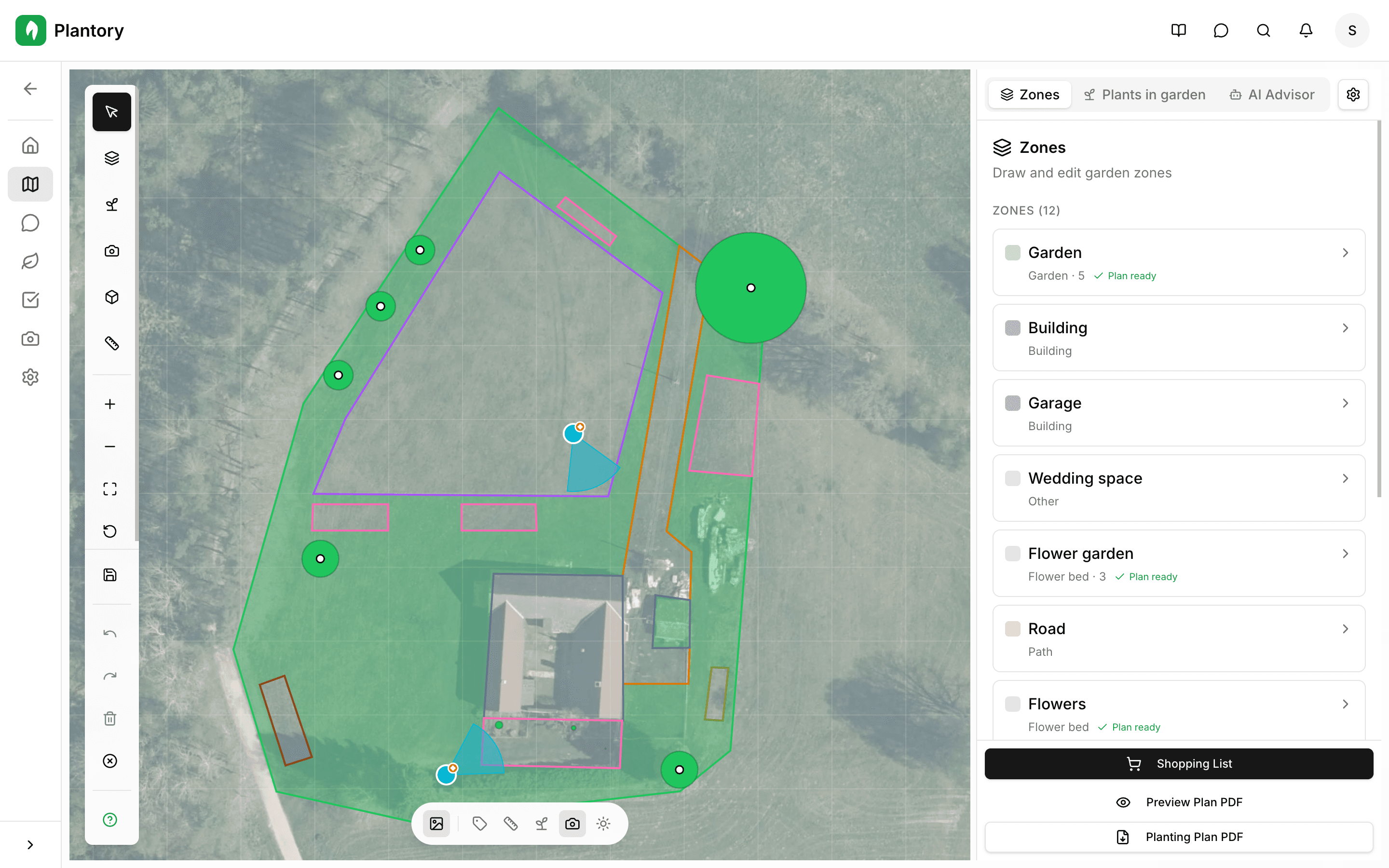
Plantory uses AI to generate realistic images of your garden based on your plan, plants, and zones. You can visualize from different photo marker positions or generate a bird's-eye plan view.
Two visualization modes
Photo view generates a realistic image from a specific photo marker position. Plan view creates a top-down visualization of your entire garden layout.
Generating a Visualization
Open the visualization dialog
Click the Visualize button from the Plan tab toolbar or from a photo marker's context menu.
Choose a mode
Select either a photo marker to visualize from that angle, or plan view for a top-down visualization.
Select a season
Choose which season you'd like to see: spring, summer, autumn, or winter. This affects plant appearance and lighting.
Wait for generation
The AI generates a realistic image based on your plan. This typically takes 30-60 seconds.
View the result
Review the generated visualization. You can regenerate if you'd like a different result.

Viewing Past Visualizations
All generated visualizations are saved and accessible from:
- The Photos tab in your garden, where they appear alongside your photo markers
- The visualization gallery within the Plan tab
You can compare visualizations across different seasons or before/after making changes to your plan.
Tips for Better Results
- Add photo markers with reference photos for more accurate visualizations
- Set the correct garden orientation so lighting and shadows look realistic
- Include all plants and zones in your plan for a complete visualization
- Try different seasons to see how your garden evolves throughout the year
Visualization limits
The number of visualizations you can generate depends on your subscription plan. Check your remaining quota in the Billing section.