Creating Your First Garden
Set up your garden profile with location and a planning canvas.
Opening the Create Dialog
Creating a new garden starts from your dashboard.
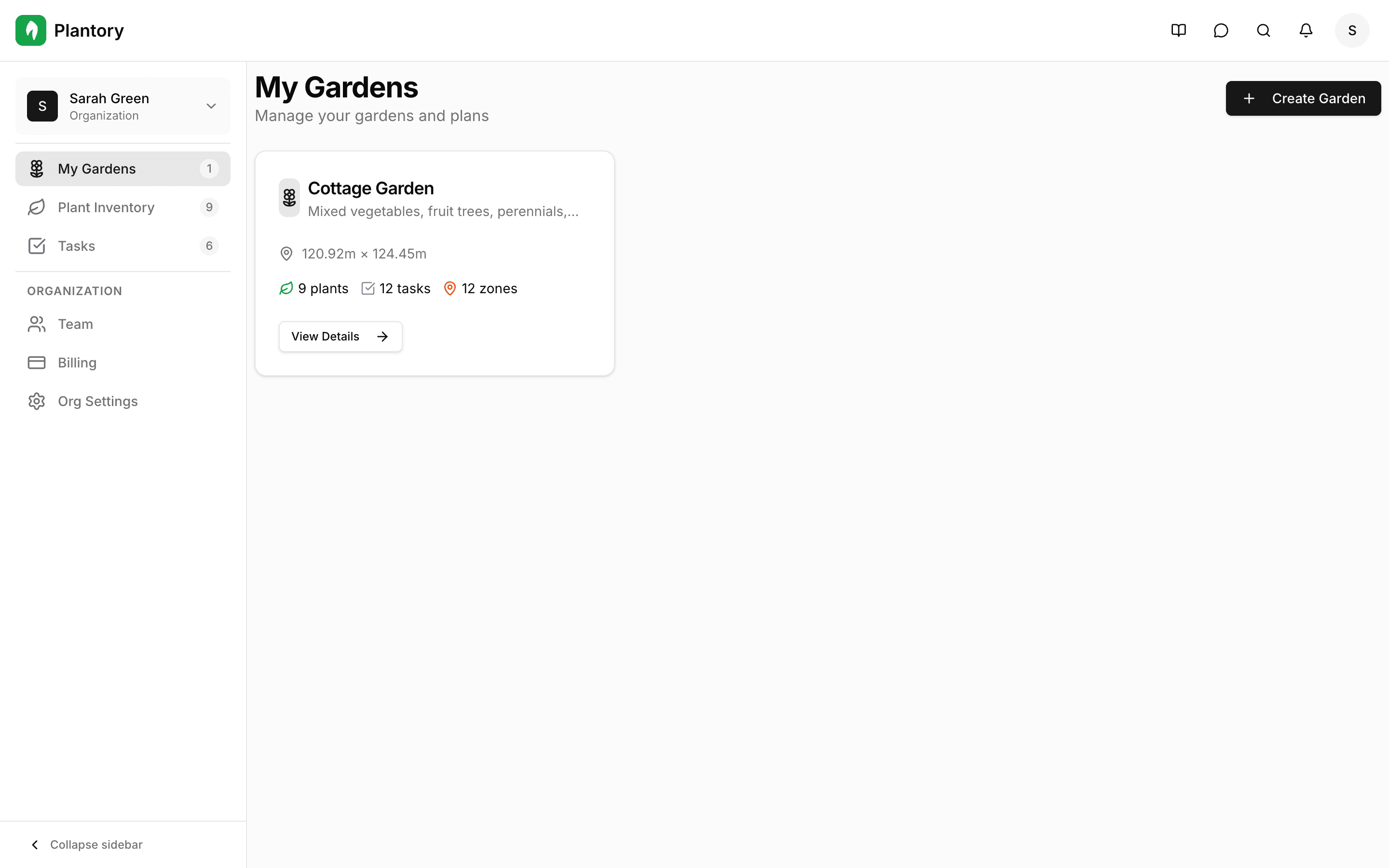
Click 'Create Garden'
Find the “Create Garden” button on your dashboard and click it to open the creation dialog.
Fill in garden details
The dialog will guide you through entering essential information about your garden.
Using Garden Templates
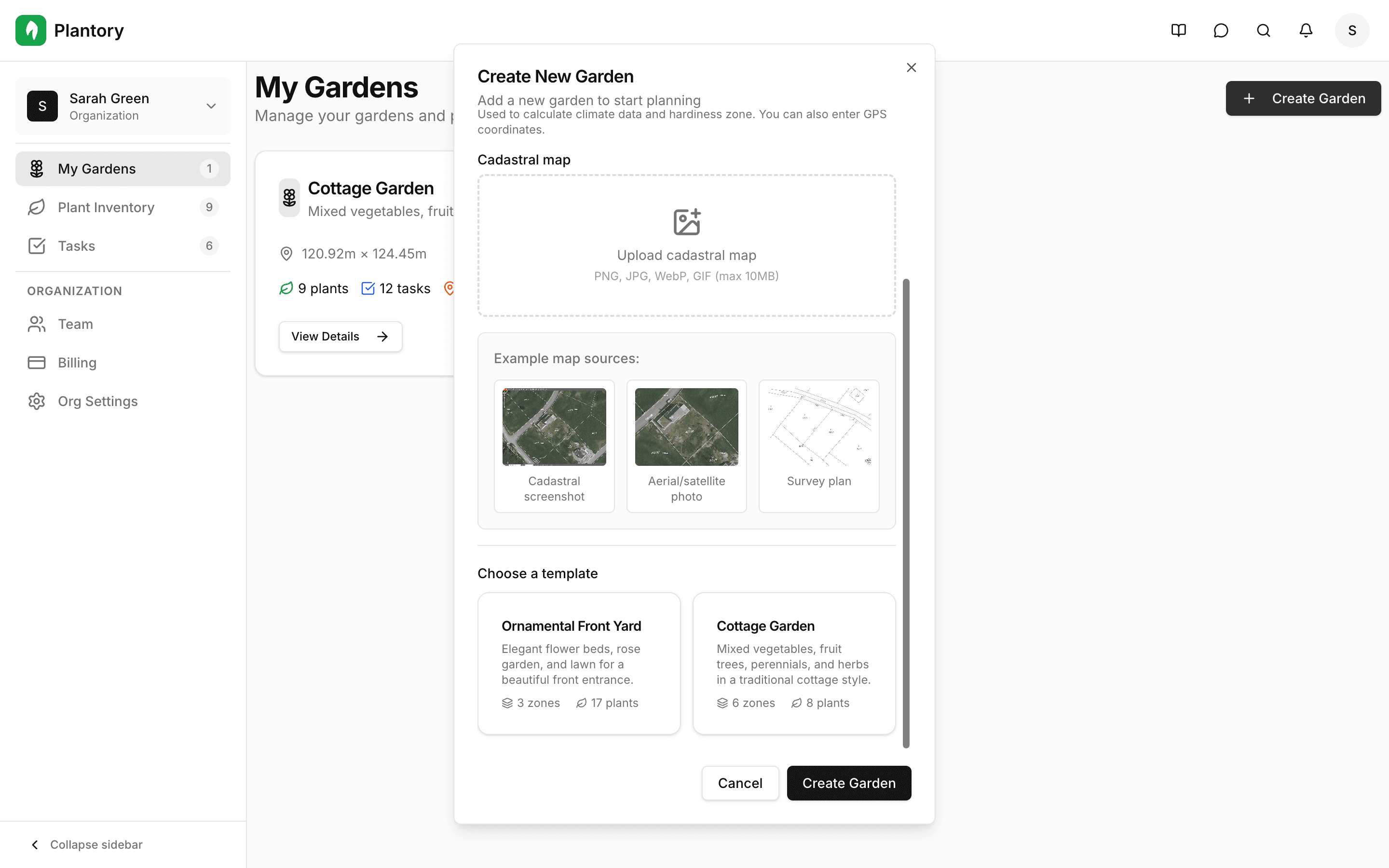
Templates are the fastest way to start planning, especially if you’re new to the app.
Available templates include pre-configured zones, starter plants, and even sample visualizations. Selecting a template creates a fully ready garden you can immediately customize.
Best for beginners
If this is your first garden, start with a template. You can always modify zones, add or remove plants, and adjust the layout later.
Understanding the Form Fields
Each field helps Plantory provide better recommendations for your garden.
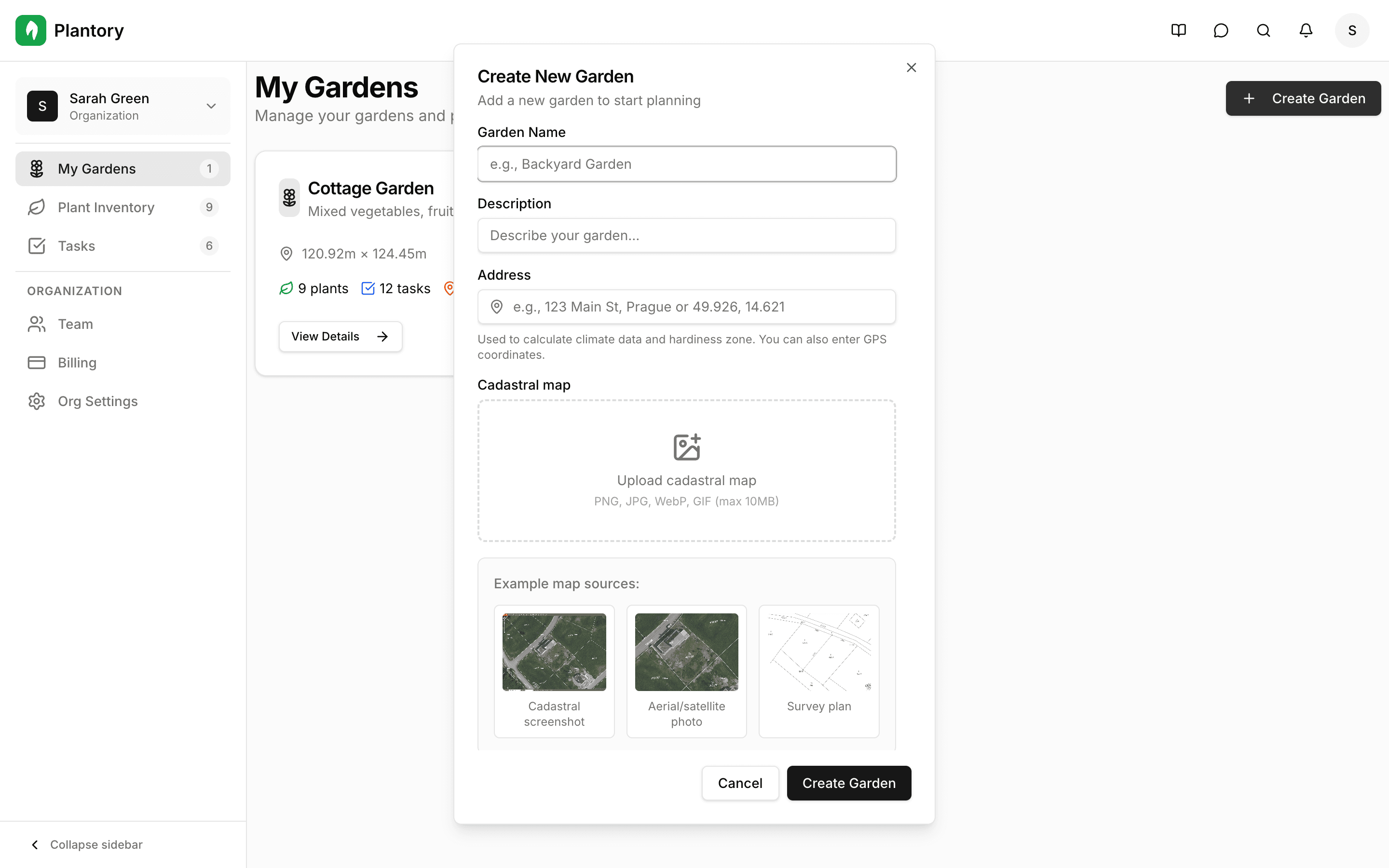
Garden Name
Give your garden a memorable name like "Backyard Vegetable Garden" or "Front Yard Flowers". This helps you identify it in your dashboard.
Description (Optional)
Add notes about your garden’s goals or constraints (for example: “mostly vegetables” or “shady in the afternoon”).
Location / Address
Enter your garden's location. This is one of the most important fields because it determines your climate zone and growing conditions.
You can enter:
- A standard address (recommended)
- GPS coordinates (for example:
49.926, 14.621)
Why location matters
Your location allows Plantory to fetch accurate climate data including hardiness zone, average temperatures, frost dates, and rainfall patterns. This data powers intelligent plant recommendations.
Cadastral Map / Background Image (Optional)
Upload an aerial view, cadastral map, or survey plan to use as the planning canvas background. This makes it much easier to draw accurate zones and calibrate scale later.
Adding a Background Image
Upload an aerial view or plan of your garden to use as the canvas background. This makes it much easier to draw accurate zones.

Best image sources
For the most accurate planning, use a satellite image from Google Maps, a cadastral map from your local authority, or a drone photo of your property.
Recommended Image Sources
- Satellite imagery (Google Maps, Bing Maps)
- Cadastral maps from local authorities
- Drone photography of your property
- Hand-drawn sketch or garden plan
After Creating Your Garden
Once created, you'll be taken to your garden's detail page. Here you can configure settings, start planning, and view climate information.
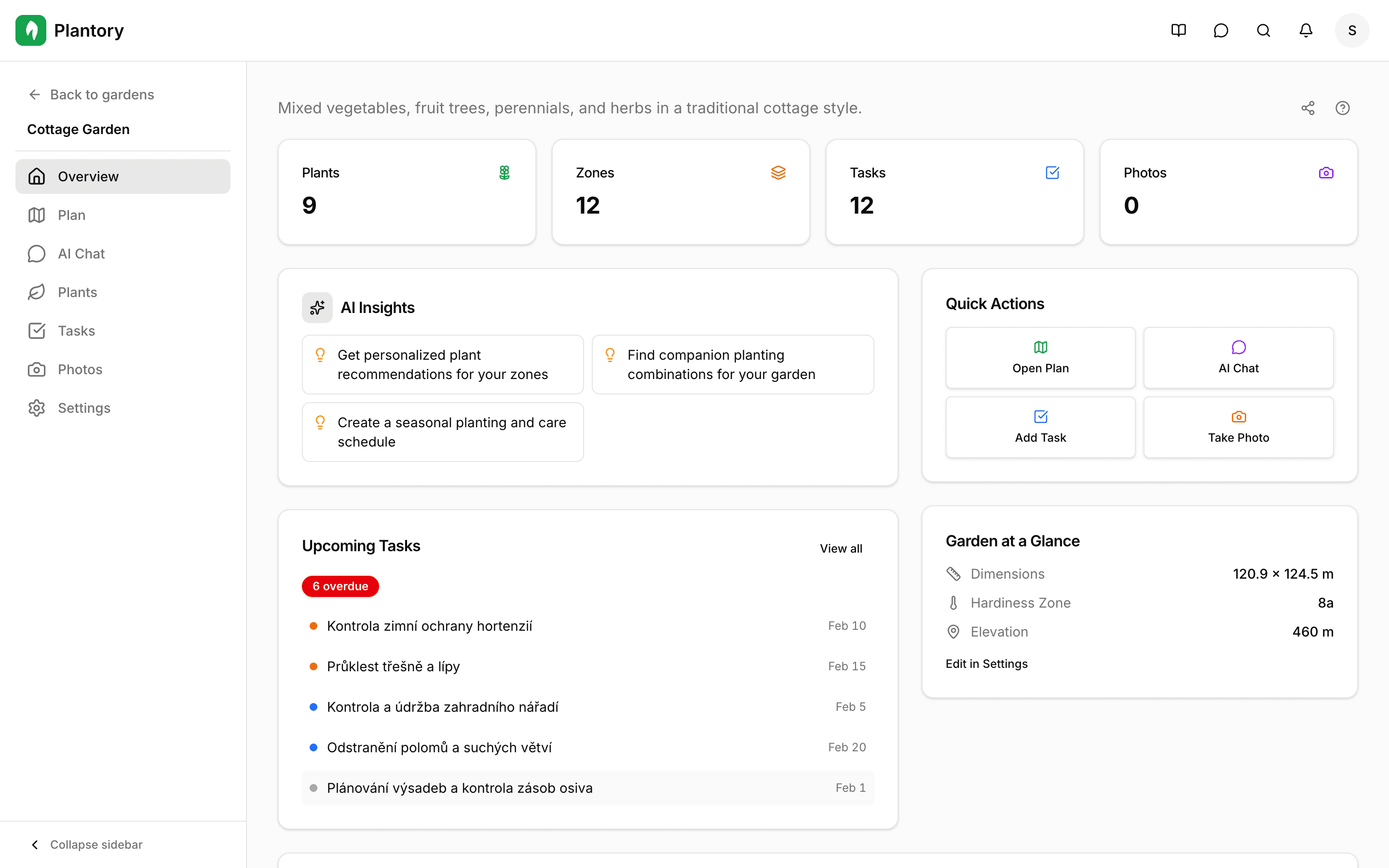
From here, you’ll typically:
- Open Plan to draw zones, place plants, and run AI recommendations
- Use Settings to update your address and soil type later if needed