Photo Markers
Capture and organize photos of your garden from specific positions and directions. Photo markers help you document progress and serve as reference points for AI visualizations.
What Are Photo Markers?
Photo markers are pins you place on the garden canvas that represent a specific viewpoint. Each marker has a position and a direction (0-360 degrees), indicating where you stood and which way you were looking when taking a photo.
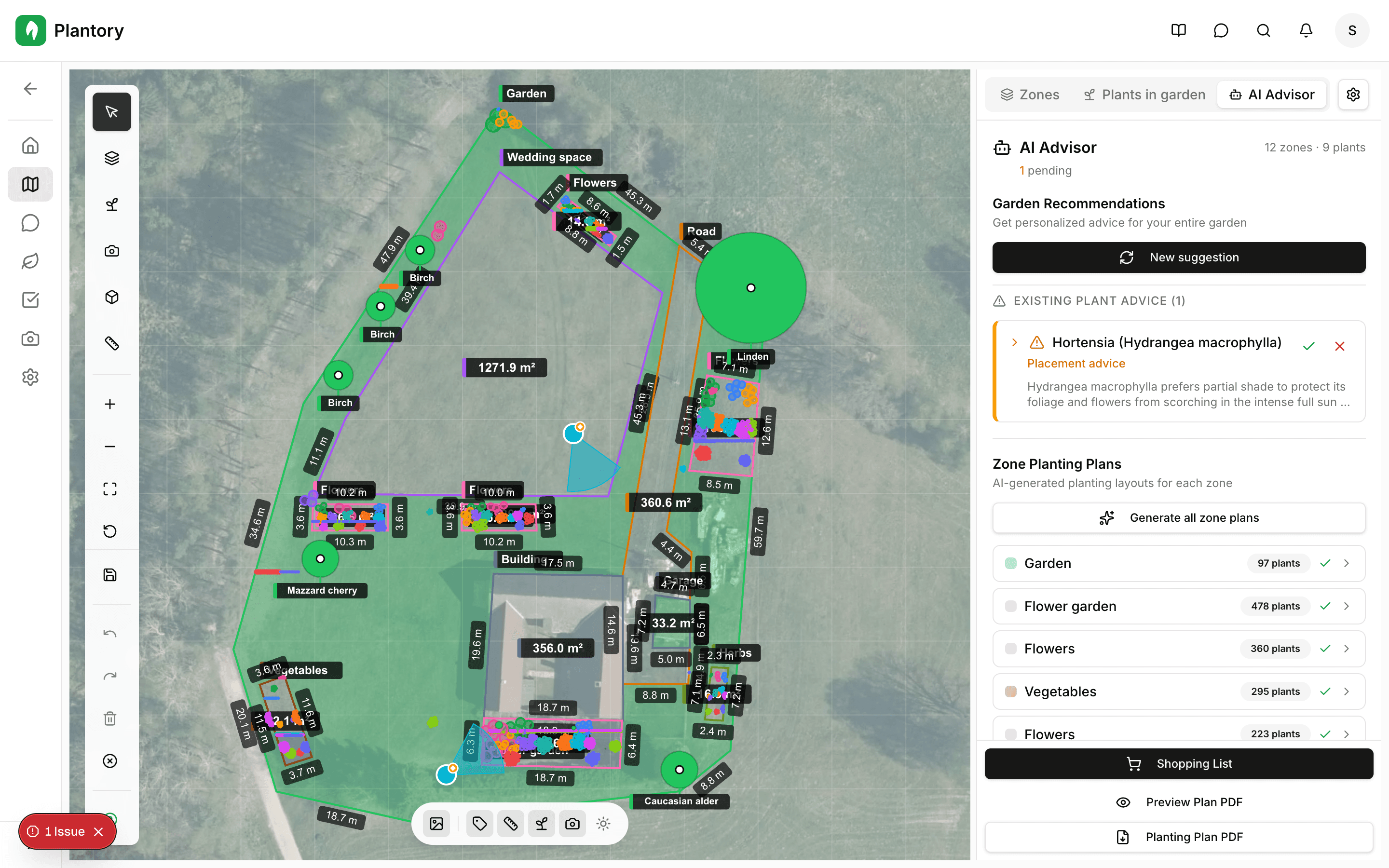
Placing Photo Markers
Select the photo marker tool
Click the Photo Marker tool in the Plan tab toolbar.
Click on the canvas
Click where you stood (or plan to stand) when taking the photo.
Set the direction
Adjust the direction indicator to show which way the camera was pointing.
Upload photos
Open the marker and upload one or more photos taken from that position.
Editing Photo Markers
Click on any photo marker to open the detail modal where you can:
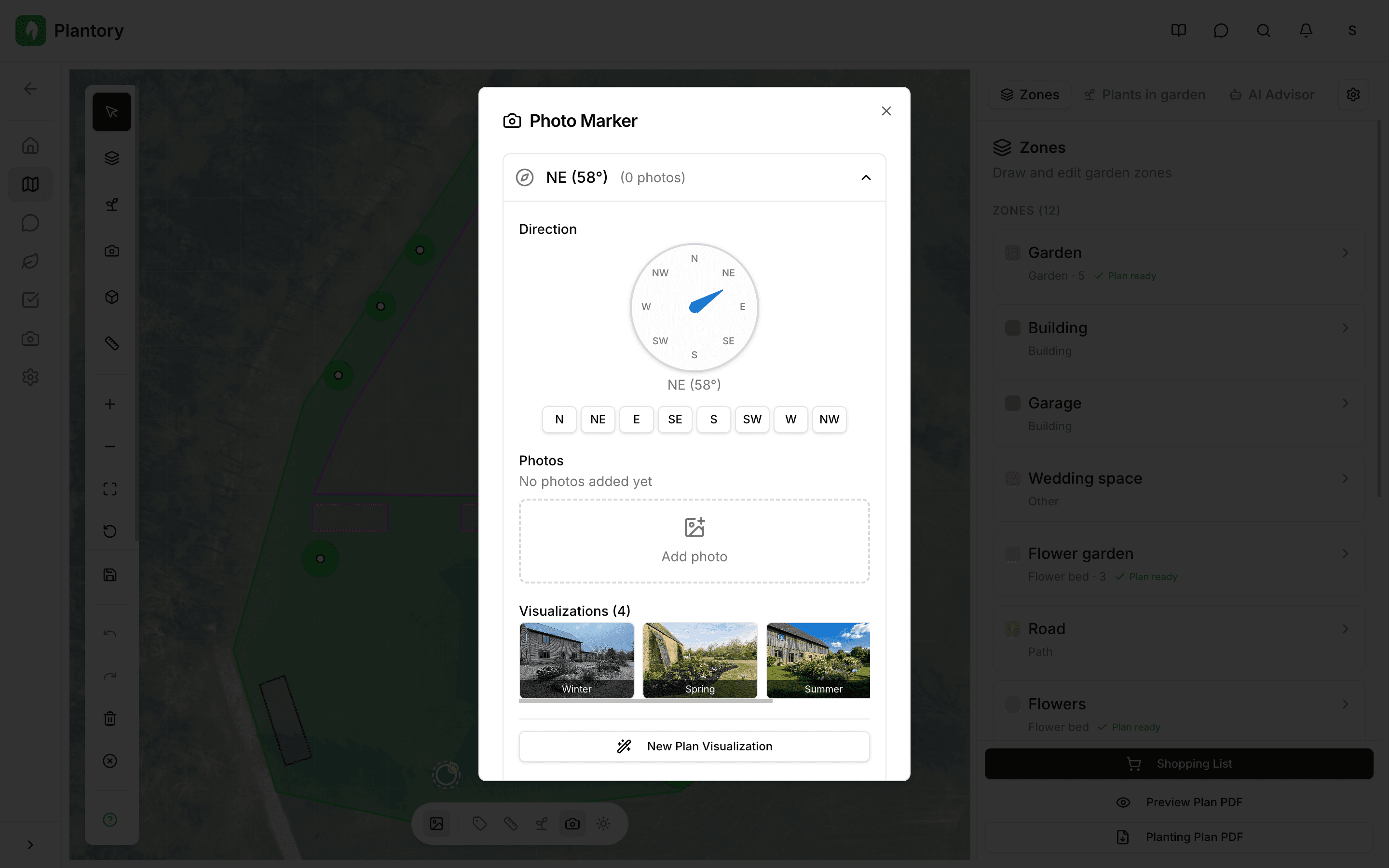
- Upload or remove photos
- Adjust the viewing direction using the compass control
- Move the marker by dragging it on the canvas
- Delete the marker if no longer needed
EXIF data
When you upload photos taken with a phone or camera, Plantory can extract EXIF metadata to automatically set the direction and timestamp.
Photo Gallery
Navigate to the Photos tab in your garden to see all photos organized by marker location.
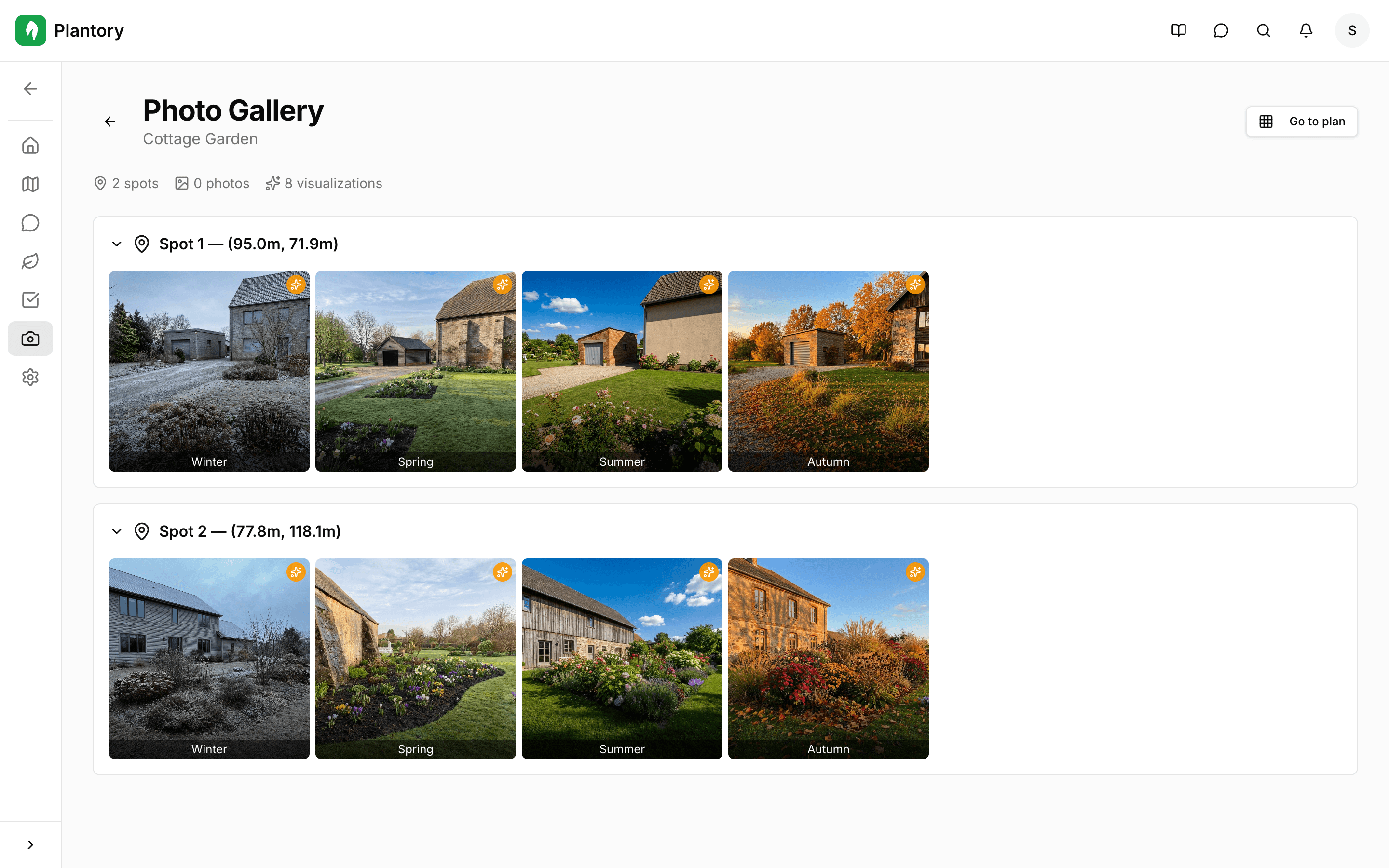
The gallery shows:
- Photos grouped by marker location
- Directional views for each marker
- AI visualization thumbnails alongside real photos
- Stats including total markers, photos, and visualizations
Click on any photo to open it in a lightbox for full-screen viewing.
Using Markers for Visualizations
Photo markers serve as viewpoints for AI visualizations. When you generate a visualization, you can select a photo marker as the camera position. The AI uses the marker's direction and any reference photos to generate a realistic view from that exact angle.
Tip for best results
Take a photo from each marker position before generating visualizations. The reference photos help the AI produce more accurate and realistic results.